


You might have noticed the tiny and distinctive graphic in your browser when you open many webpages. Those small images represent the brand and are called a favicon.
Here, in this article, we will explain what is a favicon, best practices for its size and formats, and lastly, the step-by-step guide on how to create it and add it to your site using plugins or raw HTML code.
A favicon, known as a “ favorite icon,” is a tiny icon in a square or circular shape that we see on the browser tab. This icon represents a website and is considered a critical component of its branding and user experience.
The purpose of a favicon is to visually identify web pages and applications in browser tabs, address bars, and shortcuts. Sometimes, it works as the logo of the website; however, these two things, i.e, favicon and logo, are different.
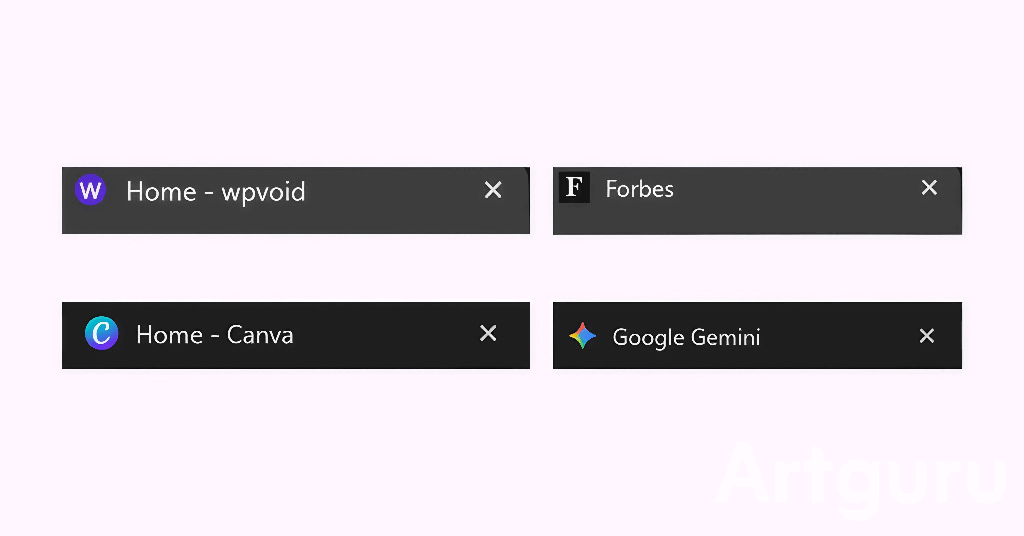
When creating a favicon for your website, you need to consider its size and requirements for optimization on every device. Considering these factors will help in SEO and appearance on different platforms or apps.
The required size of a favicon varies depending on where it will be displayed:
a) 16x16px: The standard size for the browser address bar and tabs.
b) 32x32px: Used for desktop shortcuts and the Windows taskbar.
c) 48x48px, 64x64px: For various desktop displays.
180x180px: Specifically for Apple's touch icons (e.g., iPhone/iPad home screen).
The size of the favicon varies, such as 16*16px for tabs or address bar, 32*32px for bookmarks or desktop.
According to Google, the minimum size of a favicon image should be at least 8*8px, while they recommend using a larger image than 48*48px, as they look better on various surfaces.
For a better understanding, you should create a dimension of the favicon picture of 512*512px. This size will look better on every device and surface, so you don’t need to create for each one.
Moreover, the file size of your favicon picture or icon should be less than 10KB.
Favicon image has various formats to use, such as ICO, PNG, JPEG, or SVG. Among them, PNG is the most common one that people use.
Previously, the “ .ico ” format was prominent, but nowadays, the “ PNG ” format is used more as it supports transparency and offers more clarity than ICO.
Creating a favicon is a simple and easy process. Using simple tools and websites like Canva or Favicon.io, anyone can make a favicon for their site.
Here is the list of the best favicon generator online sites to build a favicon.
1) Favicon.io : Free Favicon icons generator for PNG or text. It also provides the full HTML code for all the formats, such as .ico, PNG, Android, and Apple.
2) RealFaviconGenerator: Online generator for all the platform-specific icons (Apple Touch, Android, Windows Metro) and ensures the quality and compatibility of the icons.
3) Favic-o-Matic: Simple drag-and-drop interface that provides the standard “ .ico ” file. Moreover, it generates the packages of images in PNG format while compressing their file size. This is the recommended site for a favicon generator from PNG.
4) Canva: You can create a favicon online using Canva. You can generate any size and format of favicon, including PNG, JPEG. Moreover, the paid version offers more features like transparent and file compression.
A favicon can be added to the site using various methods, such as using dedicated plugins for WordPress, manually, or embedding HTML code inside the tag. Here are the different processes to implement.
WordPress provides many plugins to add a favicon to your site. Here is the step-by-step guide to setting up a favicon using a WordPress plugin.
Step 1: Log in to your WordPress Dashboard
Step 2: Go to the Plugin Section and click on Add Plugin
Step 3: Search for “ wp favicon ” and look for favicon by RealFaviconGenerator
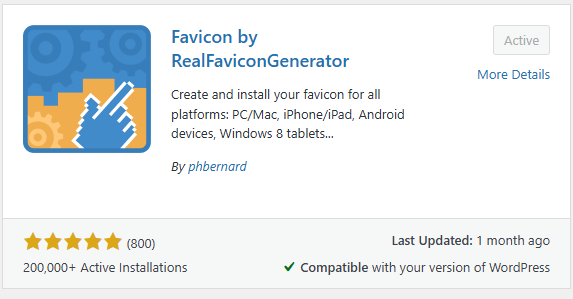
Step 4: Install and Navigate to Appearance
Step 5: Select the Favicon option
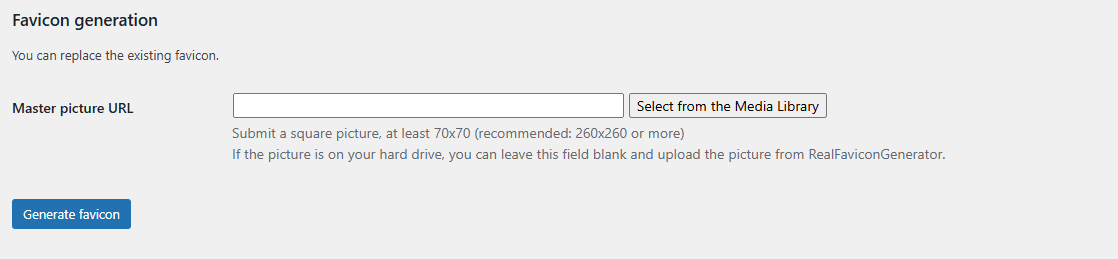
Step 6: Now paste the favicon URL or paste the favicon file
Step 7: Now customize your favicon
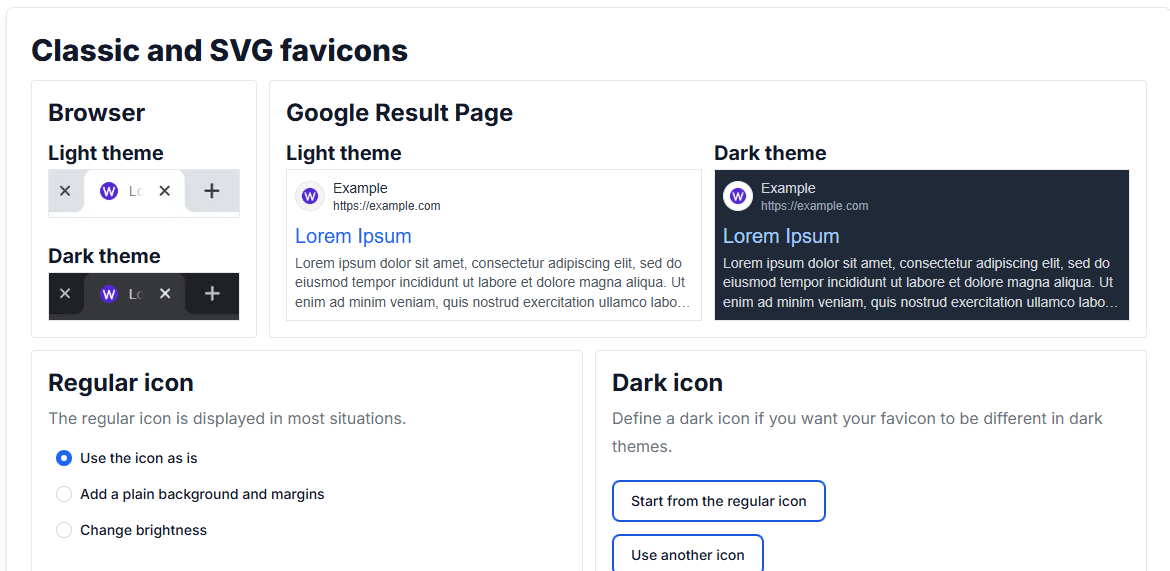
Step 8: Click on Generate and install Favicon button to add a favicon in WordPress
WordPress allows you to add your custom favicon picture through the theme settings. Here is the step-by-step guide to creating a favicon or site icon in WordPress manually.
Step 1: Log in to the Admin Dashboard
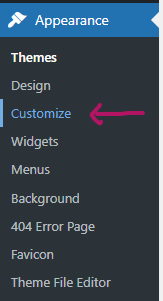
Step 2: Navigate to Appearance and select Customize
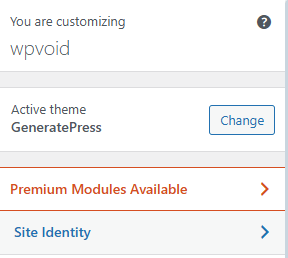
Step 3: Click on the Site Identity and go to the Site Icon section
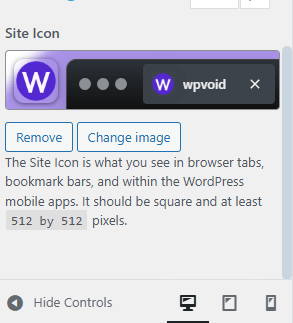
Step 4: Now, change or upload your favicon picture in Site Icon for WordPress
Step 5: Save Changes and Publish. You will see the changes in a short time.
Favicons are usually placed inside the head of the HTML code. When you add the favicon to your site, you need to use the tag to define the type of favicon and its URL.
Here is the process to add a favicon to an HTML code.
Step 1: Log in to the Admin Dashboard and open the file manager
[ If you found the index.html file, edit the file; otherwise, move to another step ]
Step 2: Select the “public_html” folder

Step 3: Select “ wp-content ” and choose the “ themes ” option

Step 4: Choose your theme name and search for the “header.php” file

Step 5: Now, back up the file if needed. And add the favicon code inside the tag of the HTML code.
Step 6: Sample code for PNG favicon
<link rel="icon" type="image/png" href="favicon.png">To add favicon code, you need to use the tag. The tag comprises various properties, including relationships, type, and icon URL location.
/* If you have normal ICO image, insert this code inside the head tag */

<link rel="icon" type="image/x-icon" href="favicon.ico">
/* For an animated ICO image, add this code */

<link rel="icon" type="image/gif" href="animated_favicon.gif">
/* To add favicon SVG image */

<link rel="icon" type="image/svg+xml" href="favicon.svg">
/* For a Favicon icon PNG image */

<link rel="icon" type="image/png" href="favicon.png">
What is the ideal favicon size in pixels?
According to Google and WordPress, the ideal size for the source image that you upload is 512x512 pixels, as it scales down perfectly to the 16* 16 px size used in browser tabs.
What is the best format for a favicon?
The PNG format is considered the best format for modern favicons because of its transparency and high-quality scaling. Moreover, the older ICO format is still sometimes used for backward compatibility, and SVG is an excellent, future-proof option to use.
Why is my favicon not showing up on Google search results?
There are several reasons for not showing the favicon on Google search results, such as the file is crawlable by Google (not blocked by robots.txt), and your favicon size is less than 48*48 pixels. Sometimes, it will take a few days or weeks for Google to recrawl and index the new icon.