

Managing website visibility feels like a battle against automated bots. Many struggle with server overloads or finding their private admin pages indexed in search results because they haven’t implemented a proper definition and rules for automated bots.
The solution lies in a simple yet powerful plain-text document known as the robots.txt file.
In this robots txt full guide, you’ll learn how to create robots.txt directives, understand robots.txt syntax, advanced AI blocking techniques, and use a robots.txt generator to ensure your website remains professional and secure.
2) Blocks AI Scrapers: You can use a deny robots.txt command to stop specific Google robots.txt or AI agents from scraping your original content.
3) Optimizes Crawl Budget: A proper robots.txt setup prevents search engines from wasting resources on low-value pages, like robots disallowing admin areas.
4) Essential SEO Tool: Mastering seo robots txt is a pillar of technical optimization, ensuring your high-value pages rank while you block robots.txt from private folders.
A robots.txt file is a set of rules or files that tell crawlers about pages to crawl and to avoid using Allow and Disallow rules. This plain-text document is hosted at the root directory of the website and manages bot traffic to prevent server overload.
The robots.txt file functions under the Robots Exclusion Protocol (REP) and serves as a "Code of Conduct" for automated agents, including search engine spiders like Googlebot and AI training crawlers.
Here is a breakdown of the basic robots.txt syntax and an explanation of each term:
User-agent: *
Disallow: /wp-admin/
Allow: /wp-admin/
Sitemap: https://wpvoid.com/sitemap.xmlb) Disallow: /wp-admin/ – This is a standard security and SEO practice. It prevents bots from wasting time crawling your backend login and management pages, such as admin, which should never appear in Google search results.
c) Allow: /wp-admin/admin-ajax.php – WordPress uses this specific file to load dynamic content (like some menus or popups). Allowing it will ensure that your site functions correctly for the crawler.
d) Sitemap: This provides a direct roadmap for bots to find your latest blog posts and pages.
The robots.txt file might seem like a minor technical detail, but it is considered the pillar of the SEO robots.txt strategy. Here is why it is essential for every SEO strategist.
b) Preventing Server Overload: Sometimes, the high-frequency bots, particularly new AI crawler bots, can put a massive strain on the website server. Adding robots.txt helps to throttle this activity in an efficient way.
c) Blocking Specific Bots: Blocking particular bots is prominent in a media site. To cite an example, news sites like Forbes, The New York Times, etc, often block AI agents from scraping their articles to ensure their factual reporting isn't used to train LLMs without compensation or credit.
d) Managing Media Indexing: While it's not great for hiding HTML pages, robots.txt is very effective at keeping images, videos, and audio files from showing up in Google Search results.
Warning: To keep a page entirely private or "noindexed," do not rely on robots.txt. Instead, you should use password protection or a noindex meta tag.
Creating a robots.txt file is super easy, while using an effective strategy is a must. Here is a list of things to ponder before making a robots.txt file.
1) Identifying the Bot Agent: Make sure to tailor instructions to specific bots. For instance, if you want Google to see everything but want to block Bing, you would use User-agent: bingbot.
2) Strategic Blocking: Ensure the common candidates on your site have a robots.txt disallow command, such as:
a) Admin panels (e.g., /wp-admin/)
b) Temporary or staging areas.
c) Search result pages within your own site.
d) Duplicate content versions.
3) Search Console Verification: Once you upload your file, make sure it works. You can use the robots.txt Tester provided by Google in the Google Search Console.
A) Upload: Ensure it is at yourdomain.com/robots.txt.
B) Verify: Use the Search Console to see if Googlebot encounters any errors or warnings.
C) Check Status: If you accidentally block Googlebot, your site will disappear from search results. Always double-check!
You can ensure that your robots.txt file is valid or not through Google’s Search Console. To check the status, follow these simple steps:
Step 1: Open the Search Console.
Step 2: Navigate to Settings on the left-hand side.
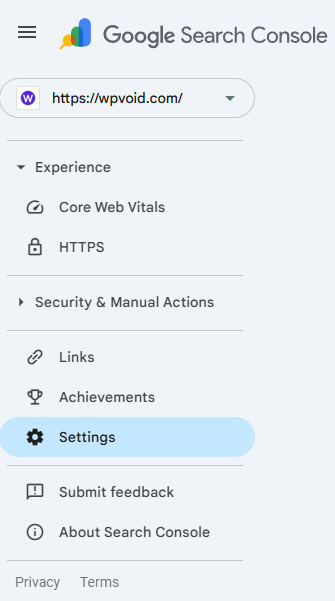
Step 3: Search for the Crawling section and open the report of the robots.txt file.

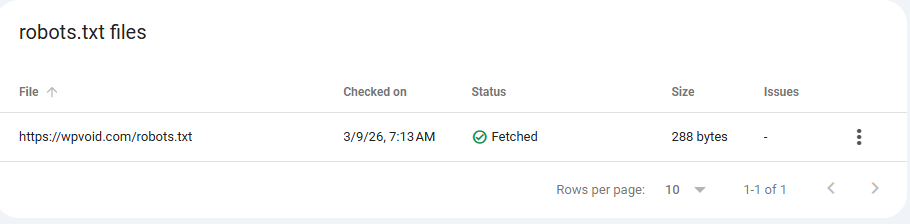
Step 4: Check the status, whether it’s fetched or not.
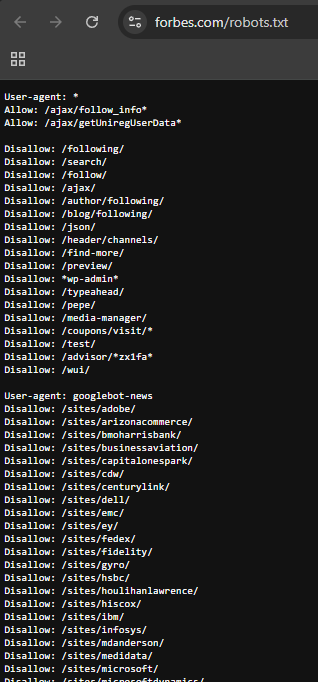
Here is the list of famous websites’ robots.txt and how they handle their crawlers:
Forbes: Their file demonstrates complex management of massive content volumes, optimizing how search engines crawl and index their extensive article database.
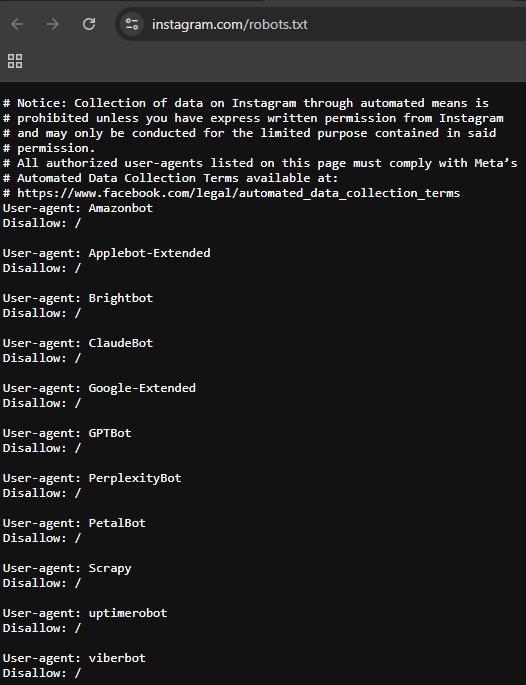
Instagram: This file serves as a primary example of strict "Disallow" rules, prioritizing user privacy by limiting bot access to sensitive areas.
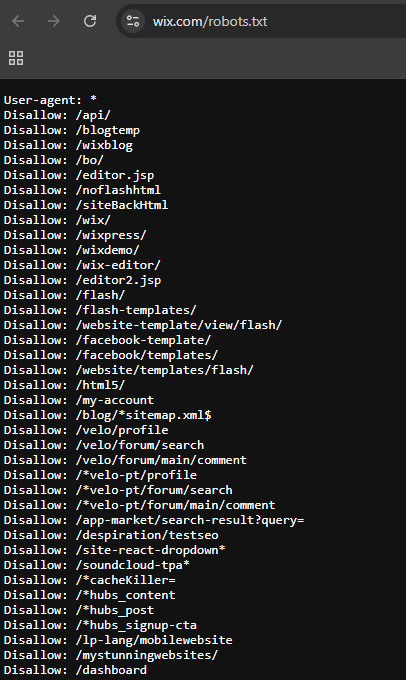
Wix: This example highlights how a major web platform manages crawling rules to protect and organize its underlying technical infrastructure.
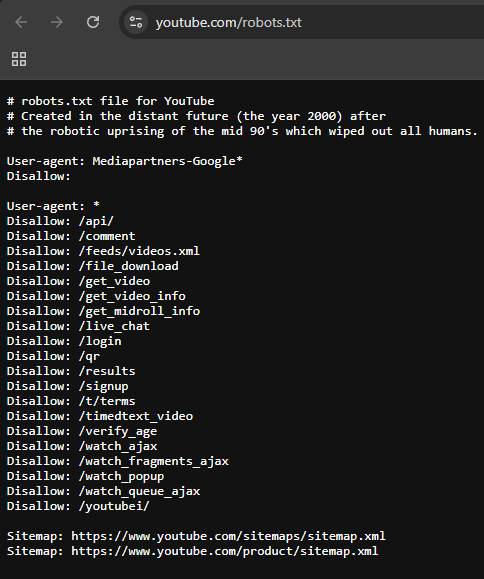
YouTube: Famous for including a humorous "Easter Egg" about a robotic uprising of the year 2000!. This file effectively balances technical instructions with personality.
There are two primary ways to generate robots.txt files, depending on your technical comfort level.
Step 1: Open Notepad (Windows) or TextEdit (Mac).
Step 2: Type your directives (e.g., User-agent: * followed by Disallow: /).
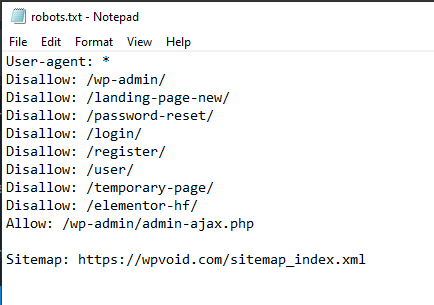
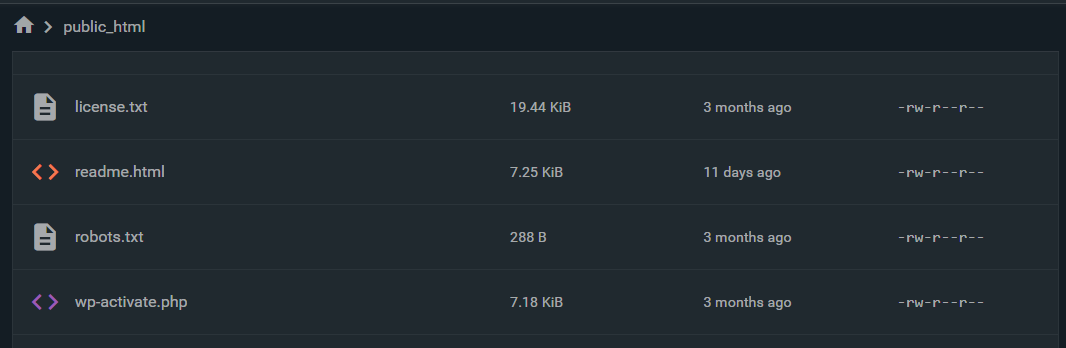
Step 4: Upload it to the root directory of your website via FTP or your hosting file manager.
Step 1: Install an SEO plugin.
Step 2: Navigate to the "Tools" or "File Editor" section.
Step 3: The plugin will provide an interface to edit the robots.txt content without needing to leave your dashboard.
Setting up a robots.txt file is a fundamental step in technical SEO, especially for an SEO optimization process.
Here is your step-by-step guide to building one from scratch, following professional standards for 2026.
Step 1: Define the User-Agent
Every robots.txt file starts by identifying who the rules apply to.
Syntax: User-agent: *

Meaning of the *: The asterisk (*) is a wildcard. It tells every bot on the internet (Google, Bing, DuckDuckGo, and scrapers) to follow the rules that follow this line.
Syntax: User-agent: *

Meaning of the syntax: The asterisk (*) is a wildcard. It tells every bot on the internet (Google, Bing, DuckDuckGo, and scrapers) to follow the rules that follow this line.
Step 2: Set Universal Disallows (The "Stay Out" Rules)
Now, you tell those bots which parts of your site are off-limits or to block. For a WordPress site, you want to protect your backend and login pages.
Syntax: Disallow: /wp-admin/

Meaning of syntax: This blocks bots from crawling your administrative dashboard. It saves your "crawl budget" for actual content pages.
Syntax: Disallow: /wp-login.php

Meaning of syntax: Specifically blocks the login page to reduce bot-driven login attempts.
Step 3: Protecting Your Content from AI Bots
If your website publishes original tutorials or news, you may want to prevent AI companies from "scraping" your data to train their models without permission. To do this, you address specific AI user-agents.
1) Blocking OpenAI (ChatGPT/GPT-4)
OpenAI uses a bot called GPTBot. Blocking this prevents your data from being used to train future versions of ChatGPT.
Syntax:

User-agent: GPTBot
Disallow: /2) Blocking Anthropic (Claude)
Anthropic’s crawler is identified as anthropic-ai.
Syntax:

User-agent: anthropic-ai
Disallow: /
3) Blocking Google’s AI Training (Gemini)
Google uses a specific toggle called Google-Extended. Blocking this ensures your content isn't used to improve Gemini or Vertex AI models.
Syntax:

User-agent: Google-Extended
Disallow: /
4) Blocking Common Scrapers (CCBot)
CCBot is the crawler for Common Crawl, a massive data repository often used by various smaller AI companies to train their models.
Syntax:

User-agent: CCBot
Disallow: /OVERALL SYNTAX:
# Step 1: Rules for all Search Engines
User-agent: *
Disallow: /wp-admin/
Disallow: /wp-login.php
Disallow: /xmlrpc.php
Allow: /wp-admin/admin-ajax.php
# Step 2: Pages to keep out of search results
Disallow: /search/
Disallow: /author/
Disallow: /tag/
# Step 3: Block specific AI Scrapers (Claude, GPT, Gemini)
User-agent: GPTBot
Disallow: /
User-agent: anthropic-ai
Disallow: /
User-agent: Google-Extended
Disallow: /
User-agent: CCBot
Disallow: /
# Step 4: Global Sitemap Location
Sitemap: https://wpvoid.com/sitemap_index.xml
Does robots.txt hide my page from Google?
No. It tells Google not to crawl the page. If another website links to your page, Google may still index the URL and show it in search results without a description. To truly hide a page, use the noindex tag.
Where should I put the robots.txt file?
It must be in the root directory. If your site is wpvoid.com, the file must be at wpvoid.com/robots.txt. If you put it in a subdirectory like wpvoid.com/assets/robots.txt, crawlers will never find it.
Why does Google ignore my "Crawl-delay" command?
Google believes its algorithms are better at determining your server's capacity than a static number. To change Google's crawl rate, you must use settings within Google Search Console.
What does "User-agent: * Disallow: /" mean?
This command tells all web crawlers (e.g., Googlebot, Bingbot) not to crawl or index any part of the website.
Can I have more than one robots.txt file?
No. Each domain or subdomain can only have one. If you have blog.mysite.com and mysite.com, they each need their own separate file in their respective root directories.